skip to main | skip to sidebar

Friday, August 12, 2011

Smart Baby Program

1 comments
This App will teach parents how to demonstrate the concepts of counting, adding, subtraction, fraction, and early reading. This is based on research studies that the environment which is the family is the most critical factor in making our children happier and smarter. And if these activities are done with fun, as early as possible, the outcome is a happy and smart child both at home and at the school. These methods has been used in a pediatric office at Bangor, Maine successfully.


Early Education Works, Study Showed

In a study by Frances Campbell of University of North Carolina, it was shown that early childhood education is an important factor on the success of poor children. “Learning begins in infancy. Education should too,” Campbell stated.

In 1972, Dr. Ramsey, at the Frank Porter Graham Child Development Center enrolled 111 infants from low-income families (98% from black families) and randomly assigned 57 of the babies to high quality child care center. Among those who received the early high quality program, 40% were still in school; but only 20% for those who did not receive the care.

The study showed that 35% of those who receive the early care were still attending or had graduated from a 4-year college course compared to only 14% from those who did not.

Those who were also under the early quality care center had higher scores on both reading and math tests and about 65% of them were employed compared with the 50% of those who did not go under the early quality care.

The early quality child care program called the Abecedarian Project was different from the traditional day care program. Babies were enrolled as early as 6 months old, attended every day for the whole year round and the methods focused on the social, emotional, and cognitive activities.

This study by Dr. Ramsey clearly showed why children should have an early education from infancy.
Thursday, December 30, 2010

Adding UIButton in the View

0 comments
Here is on how to add a button using the Interface Builder.


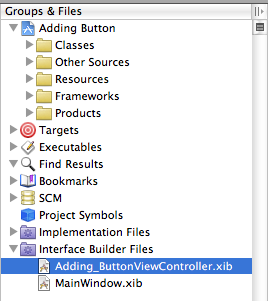
1. In Xcode in the Groups & File expand the Interface Builder Files (IB) then double click on the NIB file that defines the view to which view you want to add a button.


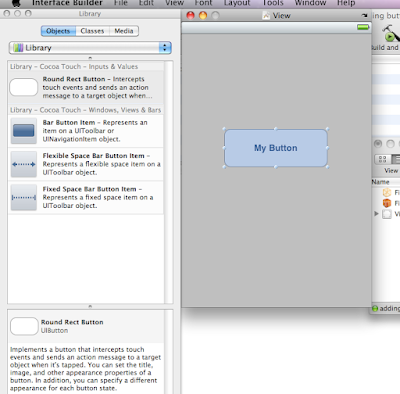
2. In IB, select Tools -> Library and drag a UIButton to the view. Resize the button and double click inside to put title "My Button".


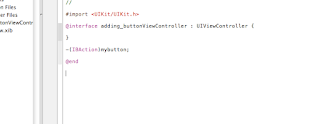
3. Go back to Xcode and on your .h file write this code

-(IBAction)mybutton;


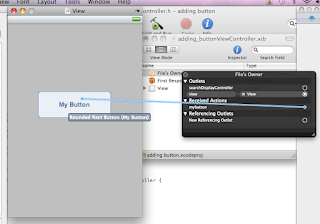
4. Back to IB then in File's owner under Receive Action connect "mybutton" on the UIButton that you created earlier.


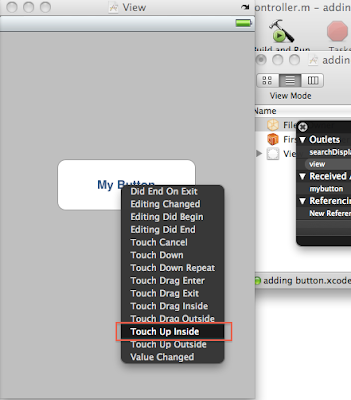
5. choose the "Touch up Inside option".


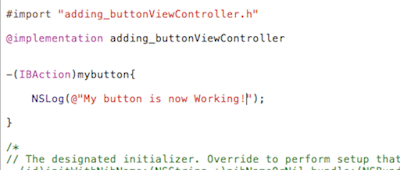
6. In Xcode in your .m file insert this code

-(IBAction) mybutton{
    
            NSLog(@"My button is now Working!");
}


then Build and Run.


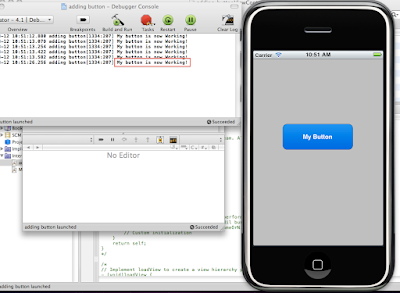
7. When you hit the button on the simulator the response appear on the debugger Console ("My button is now Working").

Tuesday, December 28, 2010

Your First iPhone App - Hello iPhone project

2 comments


Lets start the first tutorial, we are going to create our first project the hello iPhone project. In the first tutorial your going to run your Xcode first and now that the Xcode running, create a new Xcode project.


Select File -> New Project... then it launch the New Project Wizard. Select iOS and choose the View-based Application template and hit the choose button. Then name your project as Hello_Iphone.


The Xcode Project Window will open, on the left side of the window you see the organizational groups under Classes, are the classes you will be working with. Under the Resources folder double click Hello_IphoneViewController.xib to open the another tools. Interface Builder (IB) as the name to implies, use to create the visual interface enable users to interact with.


In Interface Builder you could see the View and Library Window (if you don't see the library window you can select Tools -> Library on the Interface Builder menu). Find a label on the Library Window then Drag it to the View.


Double click the label that you drag into View, then type Hello iPhone. Make sure to center it


Let's add more things here in your Inspector Window you can customize the text, to show your Inspector window jus select Tools -> Inspector. if you want to change the Font Size, on the Menu bar Select Font -> Show Fonts and you can also change font-type . if your done for that then save your work File -> Save, Quit Interface Builder. Go to Xcode on Xcode Toolbar do Build and run.


The output appear on the Simulator.
Congratulation you finish your first App.